
Your First Java Program
Welcome back! ☕
In the previous lesson, we prepared our development environment:
- Java 25 LTS is installed;
- IntelliJ IDEA is ready;
- our project exists;
- and, hopefully, nothing has exploded.
Now it's time to finally do what we came here for:
write some Java.
In this lesson, we will create our first real Java program:
public class Main {

    public static void main(String[] args) {
        System.out.println("Hello, InnoMarts!");
    }

}
At first glance, that is a suspicious amount of text just to print one sentence.
Don't worry.
By the end of this lesson, most of it will already make sense.
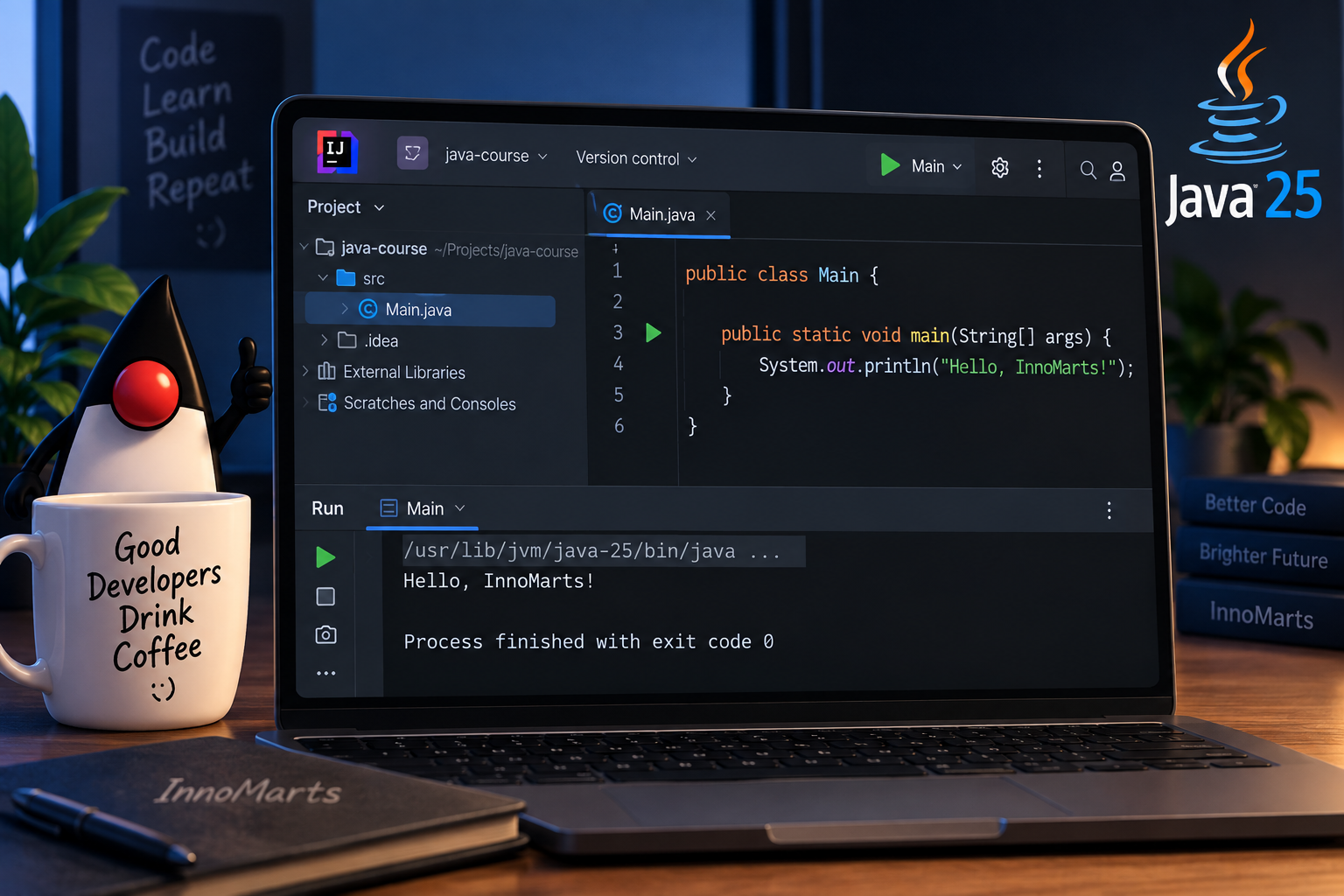
What You Will Learn
By the end of this lesson, you will know how to:
- create a Java class;
- write your first complete Java program;
- run Java code in IntelliJ IDEA;
- understand the basic structure of a Java class;
- understand what
main()is; - print text to the console;
- use
print()andprintln(); - recognize Java statements;
- understand semicolons and curly braces;
- add comments;
- break your program on purpose;
- read a few common compiler errors.
Yes.
Breaking the program is officially part of the lesson.
Welcome to software development. 😄
1. Open Your Java Project
Open IntelliJ IDEA and load the project we created in Lesson 1:
java-course
In the Project panel, you should see something similar to:
java-course
└── src
The src folder is where our Java source code will live.
Now we need something to put inside it.
2. Create Your First Java Class
Right-click the src folder.
Choose:
New → Java Class
Enter:
Main
and press Enter.
IntelliJ IDEA will create:
Main.java
Inside it, you should see something similar to:
public class Main {

}
Congratulations.
You have officially created your first Java class.
It currently does absolutely nothing.
But don't judge it too quickly.
It has existed for about five seconds.
3. What Is a Class?
Java programs are built around classes.
For now, think of a class as a container for related code.
Later in the course, we will create classes such as:
User
Car
Product
BankAccount
Task
Order
But today we start with the traditional:
Main
Our class declaration is:
public class Main {

}
Let's take it apart.
public
The word:
public
is called an access modifier.
For now, it is enough to know that it makes this class accessible from other parts of the program.
We will discuss access modifiers properly when we reach Object-Oriented Programming.
So don't try to memorize the entire Java universe today.
Your brain has enough tabs open already.
class
The keyword:
class
tells Java:
"I am defining a class."
Java has many keywords with special meanings.
class is one of them.
Main
This is the name of our class:
Main
Class names in Java normally begin with a capital letter.
Examples:
Main
User
Product
BankAccount
ShoppingCart
Notice something important:
Java is case-sensitive.
That means these are different:
Main
main
MAIN
Java does not look at them and think:
"Eh, close enough."
Java is much less forgiving than your friends.
4. Why Is the File Called Main.java?
Our file is named:
Main.java
and inside it we have:
public class Main
When a top-level class is declared public, the filename must match the class name.
So this:
public class Main
belongs in:
Main.java
This:
public class User
belongs in:
User.java
And this:
public class VeryImportantEnterpriseApplication
would live in:
VeryImportantEnterpriseApplication.java
Yes, Java likes rules.
And long names.
Especially long names.
5. Add the main() Method
Now change the file to this:
public class Main {

    public static void main(String[] args) {

    }

}
The important new line is:
public static void main(String[] args)
This is the main method.
For a simple Java application, this is where execution begins.
Think of it as the front door of your program.
When Java asks:
"Where do I start?"
we point at:
main()
6. The Scary public static void main(String[] args)
This line scares many beginners:
public static void main(String[] args)
It looks like someone tried to fit half the Java language onto one line.
Let's make it less mysterious.
public
public
means the method can be accessed from outside the class.
For now, that is enough.
static
static
allows Java to use this method without first creating an object from the Main class.
Objects come later.
Much later.
For now, think:
staticlets Java start here directly.
void
void
means that the method does not return a value.
Later we will create methods that return things like:
42
"Hello"
true
a User object
But main() doesn't return anything.
So we use:
void
main
This is simply the name of the method:
main
For the standard program entry point, Java expects this exact name.
Notice the lowercase m.
This:
main
and this:
Main
are completely different things.
One is our method.
The other is our class.
String[] args
Finally:
String[] args
allows our program to receive command-line arguments.
For example, later we could run:
java Main Viktor
and receive:
Viktor
inside our program.
We are not going to use command-line arguments yet.
Arrays also come later.
So for now, simply remember:
String[] argsis part of the standardmain()method declaration.
That's enough.
No need to summon the Java specification.
7. Make the Program Say Something
Our program starts correctly, but it still doesn't do anything visible.
Let's fix that.
Add this inside main():
System.out.println("Hello, InnoMarts!");
Your complete program should now look like this:
public class Main {

    public static void main(String[] args) {
        System.out.println("Hello, InnoMarts!");
    }

}
This is a complete working Java program.
Small?
Yes.
Important?
Also yes.
Every complicated application begins with smaller pieces like this.
Although hopefully your future banking software will do slightly more than say hello.
8. Run Your First Java Program
IntelliJ IDEA should show a green Run icon near the main() method.
Click it.
You may also right-click inside the editor and choose:
Run 'Main.main()'
A Run window will appear near the bottom of IntelliJ IDEA.
You should see:
Hello, InnoMarts!
That's your program's output.
You wrote Java code.
Java compiled it.
The JVM executed it.
And your computer obeyed.
Enjoy this moment.
Later, the computer will develop opinions.
9. Understanding System.out.println()
Let's look at:
System.out.println("Hello, InnoMarts!");
That's quite a lot of punctuation for one sentence.
We can break it into pieces.
System
System
is a class provided by Java.
It contains useful functionality related to the environment where the program is running.
out
out
represents the standard output stream.
For our beginner programs, that basically means:
the console
println
println
means:
print a line.
It prints something and then moves to the next line.
So:
System.out.println("Hello!");
prints:
Hello!
and then moves the cursor down.
10. Print Several Lines
Let's make our program a little more talkative.
public class Main {

    public static void main(String[] args) {
        System.out.println("Hello!");
        System.out.println("Welcome to Java.");
        System.out.println("This is my first Java program.");
    }

}
Run it.
You should get:
Hello!
Welcome to Java.
This is my first Java program.
Each println() prints one line.
Simple.
Useful.
And much more interesting than an empty class staring into the void.
11. print() vs println()
Java also has:
System.out.print()
Notice the missing:
ln
Compare these examples.
Using print()
System.out.print("Hello ");
System.out.print("Java");
System.out.print("!");
Output:
Hello Java!
Everything stays on the same line.
Now try:
System.out.println("Hello");
System.out.println("Java");
System.out.println("!");
Output:
Hello
Java
!
The difference is:
print()   → stays on the same line
println() → moves to a new line afterward
You will use both.
But println() will probably become your best friend during the first few lessons.
12. What Is a String?
Look at this:
"Hello, InnoMarts!"
This is a String.
A String represents text.
More examples:
"Java"
"My name is Viktor"
"I need more coffee."
"Why is the compiler angry again?"
All of them are Strings.
Strings are surrounded by double quotation marks:
" "
Later, we will spend an entire lesson working with Strings.
For now:
If you want Java to treat something as text, double quotes are usually involved.
13. What Happens Without Quotes?
This works:
System.out.println("Hello");
Now try:
System.out.println(Hello);
IntelliJ will complain.
Why?
Because without quotation marks, Java thinks:
Hello
is the name of something.
Maybe a variable.
Maybe a field.
Maybe another mysterious thing we haven't created.
Since Java cannot find it, you'll get an error.
Add the quotes back:
System.out.println("Hello");
and Java becomes happy again.
Well, as happy as a compiler gets.
14. What Is a Statement?
This:
System.out.println("Hello!");
is a Java statement.
A statement is basically an instruction.
You're telling Java:
Do this.
For example:
System.out.println("One");
System.out.println("Two");
System.out.println("Three");
contains three statements.
Java executes them from top to bottom.
So the output is:
One
Two
Three
Not:
Three
One
Banana
Two
Computers are pleasantly predictable when the code is correct.
15. The Semicolon ;
Look at this line:
System.out.println("Hello");
Notice the semicolon:
;
In Java, many statements end with a semicolon.
Think of it as the period at the end of a sentence.
Now remove it:
System.out.println("Hello")
IntelliJ should immediately highlight a problem.
Try running the program.
You may see an error similar to:
';' expected
Java is basically saying:
"Excuse me, were you finished with that statement?"
Put it back:
System.out.println("Hello");
Everything works again.
16. Curly Braces { }
Our program contains curly braces:
{
}
They define blocks of code.
For example:
public class Main {

}
The braces contain everything that belongs to the class.
Inside the class we have:
public static void main(String[] args) {

}
Those braces contain everything that belongs to main().
So structurally, our program looks like this:
Main class
{
    main method
    {
        instructions
    }
}
This idea of putting blocks inside other blocks appears everywhere in Java.
17. Indentation Matters — to Humans
Technically, this can still be valid Java:
public class Main {
public static void main(String[] args) {
System.out.println("Hello");
}
}
Java can understand it.
Humans can technically understand it too.
But humans will hate you.
Instead, write:
public class Main {

    public static void main(String[] args) {
        System.out.println("Hello");
    }

}
Indentation makes the structure obvious.
IntelliJ IDEA can format your code automatically.
On many systems, the shortcut is:
Ctrl + Alt + L
Try it.
Watching badly formatted code suddenly become neat is strangely satisfying.
18. Comments
Sometimes we want to leave notes in our source code.
Java should ignore those notes.
Humans should read them.
That's what comments are for.
Single-Line Comments
A single-line comment begins with:
//
Example:
public class Main {

    public static void main(String[] args) {
        // Print a greeting
        System.out.println("Hello, InnoMarts!");
    }

}
Java ignores:
// Print a greeting
Multi-Line Comments
You can also write comments over several lines:
/*
This is a multi-line comment.
Java ignores all of this.
Even this sentence.
*/
For example:
public class Main {

    public static void main(String[] args) {

        /*
        This is our first Java program.
        Things will become more interesting soon.
        */

        System.out.println("Hello, InnoMarts!");
    }

}
Comments are useful.
But don't explain the painfully obvious.
This:
// Print Hello
System.out.println("Hello");
doesn't add much information.
Good comments usually explain why, not merely what.
19. Let's Break Everything 💥
Now comes an important programming skill:
breaking things deliberately.
This may sound strange.
But when you intentionally create an error, you learn what that error looks like.
Then when it happens accidentally later, you recognize it.
Mistake 1 — Remove the Semicolon
Start with:
System.out.println("Hello");
Remove the semicolon:
System.out.println("Hello")
Look at what IntelliJ shows.
Try running the program.
Then fix it.
Mistake 2 — Write system Instead of System
Try:
system.out.println("Hello");
Java is case-sensitive.
So:
System
and:
system
are different.
Fix it:
System.out.println("Hello");
Mistake 3 — Forget a Quote
Try:
System.out.println("Hello);
Now Java can't tell where your String ends.
Fix it:
System.out.println("Hello");
Mistake 4 — Delete a Curly Brace
Remove one:
}
from your program.
You may suddenly see several errors.
This teaches us an important lesson:
One mistake can cause many error messages.
If IntelliJ shows 12 errors, don't immediately assume you've made 12 mistakes.
Sometimes one missing brace has simply caused Java to lose track of the entire structure.
Start with the first error.
20. Compiler Errors Are Useful
Beginners often see red text and think:
"I destroyed everything."
Usually, you didn't.
The compiler is trying to help.
For example:
';' expected
contains useful information.
Java expected:
;
and didn't find it.
The error is not:
"You are terrible at Java."
It's more like:
"I got confused right here. Please check this."
Learning to read compiler messages is one of the most valuable programming skills you can build.
21. Your First Personalized Program
Now change the program so it says something about you.
For example:
public class Main {

    public static void main(String[] args) {
        System.out.println("My name is Viktor.");
        System.out.println("I am learning Java.");
        System.out.println("I use IntelliJ IDEA.");
        System.out.println("My code has not exploded yet.");
    }

}
Use your own name and your own messages.
Unless your name really is Viktor.
Then you can save yourself some typing. 😄
🎯 Challenge 1 — Developer Card
Create a program that prints:
========================
     DEVELOPER CARD
========================
Name: Viktor
Language: Java
IDE: IntelliJ IDEA
Level: Beginner
Goal: Build real projects
========================
Use several:
System.out.println()
statements.
Try to write the program yourself.
🎯 Challenge 2 — print() + println()
Try to produce exactly this:
Hello, Java!
Let's build something.
But use both:
System.out.print()
and:
System.out.println()
in your solution.
There is more than one correct way.
Experiment.
🎯 Challenge 3 — Predict Before Running
Look at this code:
public class Main {

    public static void main(String[] args) {
        System.out.print("Java ");
        System.out.print("is ");
        System.out.println("fun!");
        System.out.println("Let's continue.");
    }

}
Before pressing Run, predict the exact output.
Then execute it and compare.
This habit is very useful.
Instead of always asking:
"What did the computer do?"
start asking:
"What do I expect the computer to do?"
That small change is a big step toward thinking like a programmer.
22. Let's Look at the Whole Program Again
Our original program was:
public class Main {

    public static void main(String[] args) {
        System.out.println("Hello, InnoMarts!");
    }

}
At the beginning of this lesson, it looked mysterious.
Now we already understand quite a lot.
public class Main
creates a class named Main.
public static void main(String[] args)
defines the entry point of our application.
System.out.println(...)
prints something to the console.
"Hello, InnoMarts!"
is a String.
;
ends a statement.
And:
{ }
define blocks of code.
Not bad for Lesson 2.
🎓 What You Learned
In this lesson, you learned:
- how to create a Java class;
- why the class is stored in
Main.java; - what the
classkeyword means; - why Java is case-sensitive;
- what the
main()method is; - the basic meaning of
public,static, andvoid; - what
String[] argsis used for; - how to print output with
System.out.println(); - how
print()differs fromprintln(); - what a String is;
- what a statement is;
- why Java uses semicolons;
- what curly braces do;
- why indentation matters;
- how comments work;
- how to intentionally create and fix basic errors.
Most importantly:
You can now create, run, modify, break, and repair a simple Java program yourself. ☕
That's real progress.
What's Next?
We can now write Java code.
But there's still something happening behind the scenes.
When you click:
Run
how does:
Main.java
become a running program?
What does the Java compiler actually create?
What is bytecode?
What exactly is the JVM doing?
And why can Java code run on Windows, Linux, and macOS?
That's what we'll explore in the next lesson.