
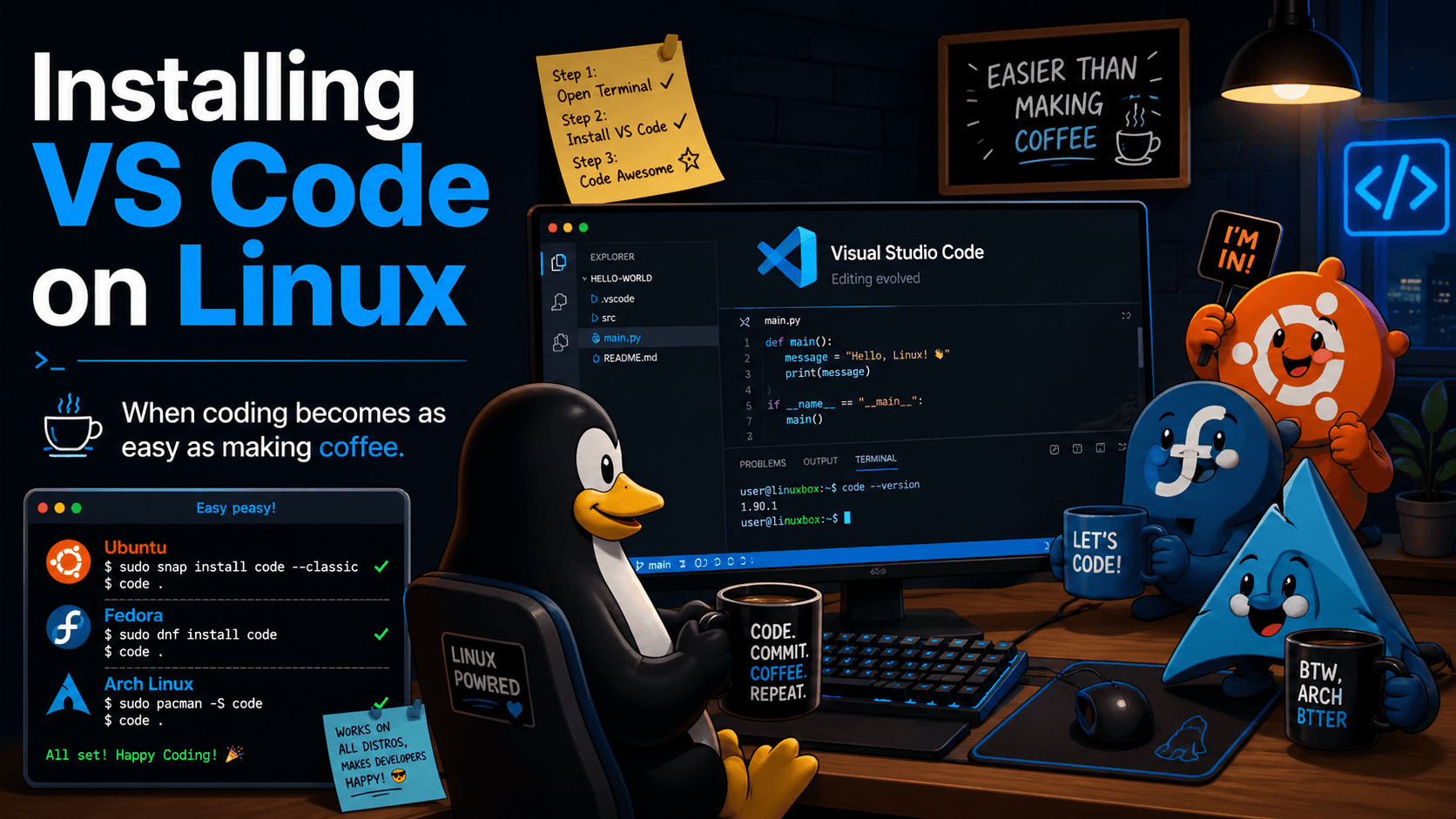
So, you’ve decided to install Visual Studio Code on Linux.
Excellent choice.
At this point you are only a few terminal commands away from having:
- a powerful code editor,
- the illusion of perfect productivity,
- and at least eight extensions you absolutely did not need but installed anyway.
In this guide, we’ll install VS Code on Ubuntu, Fedora, and Arch Linux.
Nothing too dramatic. Just a few commands, a little patience, and the usual quiet agreement that Linux users somehow enjoy doing things through the terminal.
Ubuntu: The Calm and Civilised Route
If you use Ubuntu, installing VS Code is quite straightforward.
This is one of those rare Linux moments when things behave almost too well, and you begin to suspect a trap.
1. Install the required tools
sudo apt update
sudo apt install wget gpg
2. Add the Microsoft GPG key
wget -qO- https://packages.microsoft.com/keys/microsoft.asc | gpg --dearmor > packages.microsoft.gpg
sudo install -o root -g root -m 644 packages.microsoft.gpg /usr/share/keyrings/
This is the part where your system and Microsoft exchange a formal handshake.
3. Add the VS Code repository
sudo sh -c 'echo "deb [arch=amd64 signed-by=/usr/share/keyrings/packages.microsoft.gpg] https://packages.microsoft.com/repos/code stable main" > /etc/apt/sources.list.d/vscode.list'
4. Install VS Code
sudo apt update
sudo apt install code
5. Start VS Code
You can launch it with:
code
Or open it from your applications menu like a responsible adult.
Fedora: Quick, Clean, and Slightly Fancy
Fedora usually makes you feel like everything is polished, modern, and one small step away from becoming a workstation used by very serious people in glasses.
Installing VS Code is still simple.
1. Import the Microsoft key and add the repository
sudo rpm --import https://packages.microsoft.com/keys/microsoft.asc
sudo sh -c 'echo -e "[code]\nname=Visual Studio Code\nbaseurl=https://packages.microsoft.com/yumrepos/vscode\nenabled=1\ngpgcheck=1\ngpgkey=https://packages.microsoft.com/keys/microsoft.asc" > /etc/yum.repos.d/vscode.repo'
2. Install VS Code
sudo dnf check-update
sudo dnf install code
3. Start VS Code
Run:
code
Or click the icon and enjoy the moment.
Arch Linux: The Path of Courage, Confidence, and Mild Risk
Arch Linux users do not merely install software.
They experience it.
Fortunately, VS Code is not especially difficult here.
Option 1: Install the package from the official repositories
sudo pacman -S code
This is the easiest route and, frankly, a very sensible one.
Which is slightly unusual for Arch, but let us enjoy the moment.
Option 2: Install the Microsoft build from the AUR
If you prefer the Microsoft-branded binary version and you already use an AUR helper like yay, you can install it with:
yay -S visual-studio-code-bin
This is also a good option if you like having one more package source in your life for character development.
Start VS Code
Once installed, launch it with:
code
And try not to spend the next 40 minutes choosing a theme called something like Midnight Neon Hyper Coffee Pro.
Which Version Should You Choose?
Here is the short version:
- Ubuntu / Fedora: the Microsoft package is the most common and straightforward option.
- Arch Linux:
sudo pacman -S codeis the simplest route from the official repositories. - AUR users:
visual-studio-code-binis there if you specifically want that version.
In other words: you have options, which is wonderful — and also a classic way to lose 25 minutes comparing things that all basically work.
Final Thoughts
That’s it.
VS Code is installed, your Linux machine is ready, and your coding career is now only separated from greatness by a few bugs, a missing bracket, and one extension conflict you will absolutely blame on something else.
The nice thing about VS Code is that it feels approachable whether you are:
- writing your first script,
- building a website,
- learning Python,
- or pretending you are “just checking one file” before disappearing into a 3-hour configuration session.
Enjoy your setup, write some code, and remember:
Installing the editor is the easy part.
Choosing the perfect theme is where real suffering begins.